Make artwork from the idea or photo you already have
AIDrawing gives you two starting points: describe something you want to draw, or upload a photo and choose how it should be redrawn.
For a new scene, use Text to Image and describe the subject, setting and visual details. For a photo, use Image to Image; the picture supplies the content, so you do not need to describe it all again.
Choose the drawing style you want. When working from a photo, an extra description is optional: leave it empty for a style change, or say which details you want adjusted.
Build a scene from a written idea
Start with what should be in the image. A description such as a quiet street after rain is a useful starting point; add details about the buildings, lighting or composition when those choices matter. Use the style selection for the drawing treatment.
Open the composer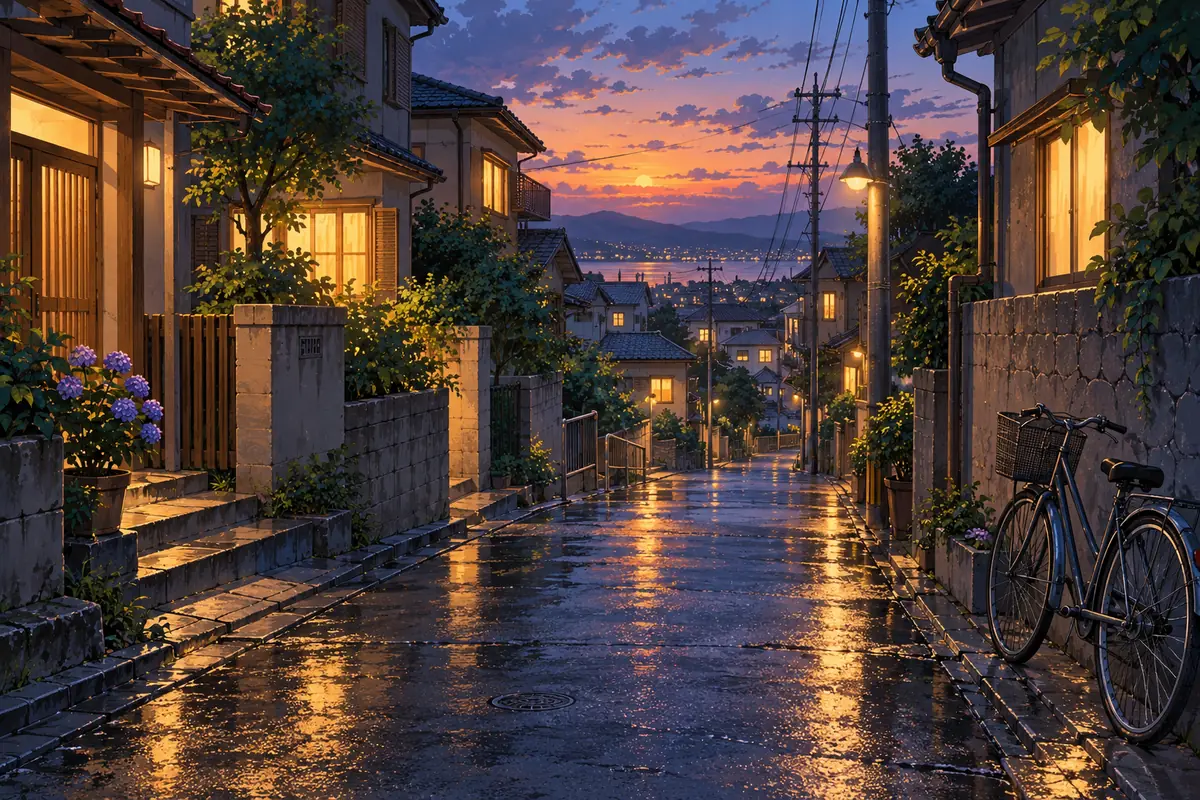
Let a photo supply the content
When you already have a picture, upload it rather than rewriting everything it shows. Choose a style to redraw the subject and scene. Faces, lettering and small background details can change during the redraw, so review the result against your original.
Open the composer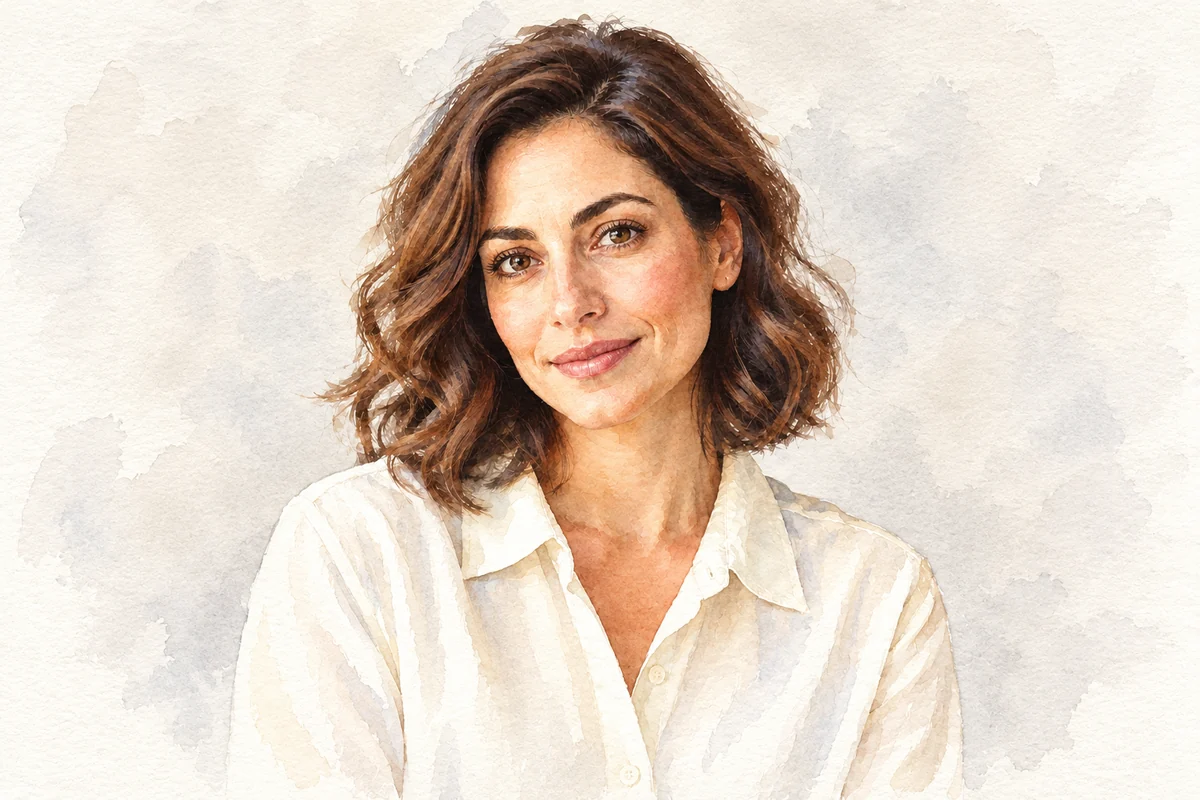
Describe only the change you need
For a photo, try a focused instruction such as change the shirt to blue or simplify the background. A requested edit changes that part of the image; the remaining content provides the starting point. If you only want a different drawing style, leave the extra description empty.
Open the composer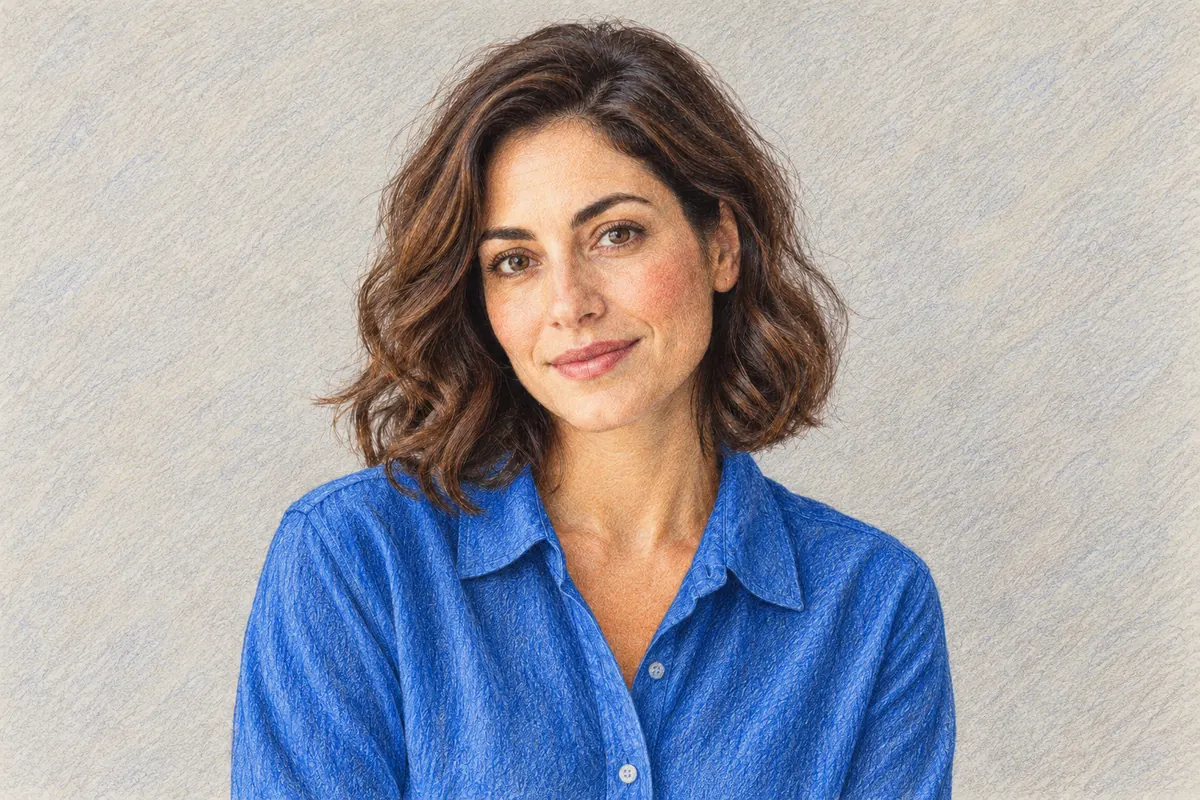
Choose the right starting point
Match the input to what you want to make.
A scene that does not exist yet
Start from words when the main subject, setting or composition still needs to be invented.
A subject you already have
Start from a photo when the person, pet, object or place in that picture is central to your idea.
A change of drawing medium
Use the selected style to guide the linework, color, shading and texture.
A focused visual adjustment
Use the optional description to name a change to the uploaded image instead of repeating the whole scene.
How to create your artwork
Choose the route that matches the material you have.
Create from a description
- 01
Write the idea
In Text to Image, describe the subject and setting. Include important details rather than a long list of unrelated instructions.
- 02
Select a drawing style
Choose how you want the idea drawn and review the available output settings.
- 03
Generate and review
Submit the request, then inspect the result. For a new version, change the detail that most needs attention.
Create from a photo
- 01
Upload the starting photo
In Image to Image, upload the photo whose subject and scene you want to redraw.
- 02
Choose the style and any edits
Select a style. Leave the description empty for a style change, or write the specific changes you want.
- 03
Inspect the drawing
Compare recognizable features, composition and requested edits with the original photo. Use that comparison to guide another attempt if needed.
One pet portrait, four drawing treatments
Compare a single reference photo with pencil, cartoon, pixel and oil-painting treatments. The subject stays recognizable while the linework, color and surface change.
These are illustrative style examples, not previews of your own upload. Use them to choose a drawing treatment; your photo or written idea supplies the content.
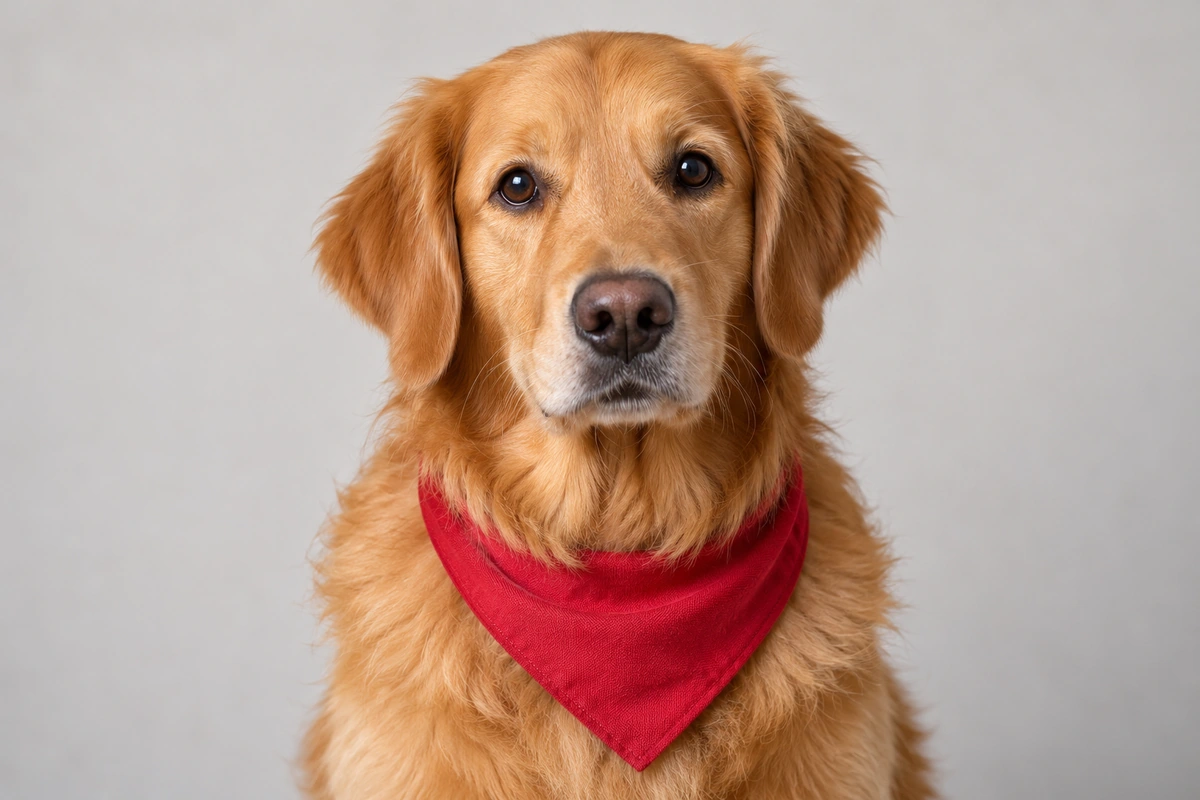
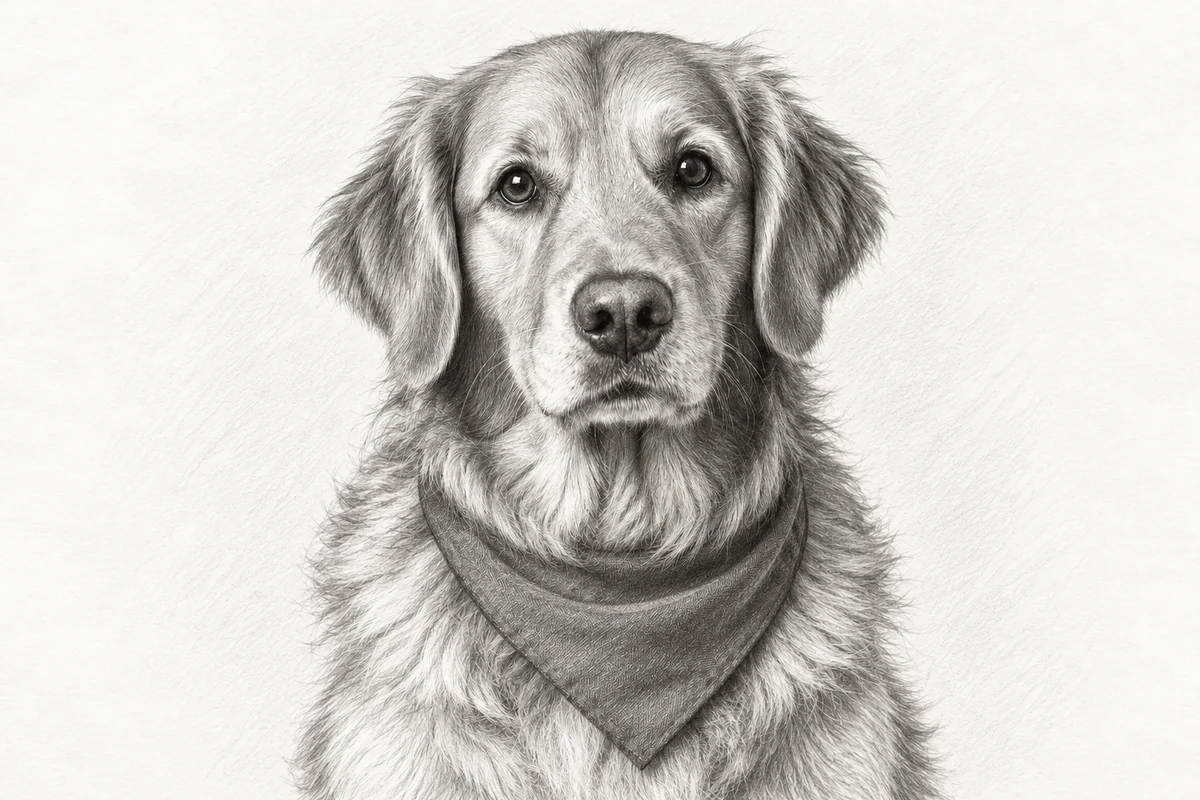
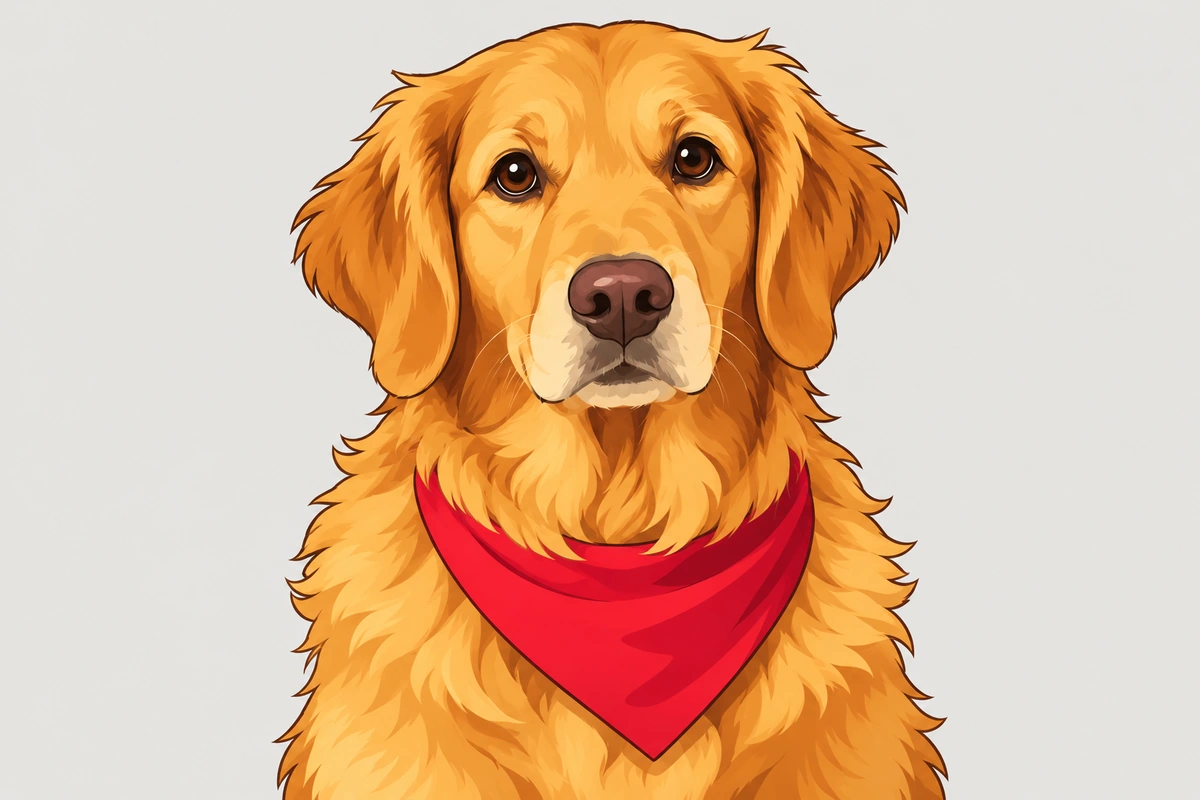
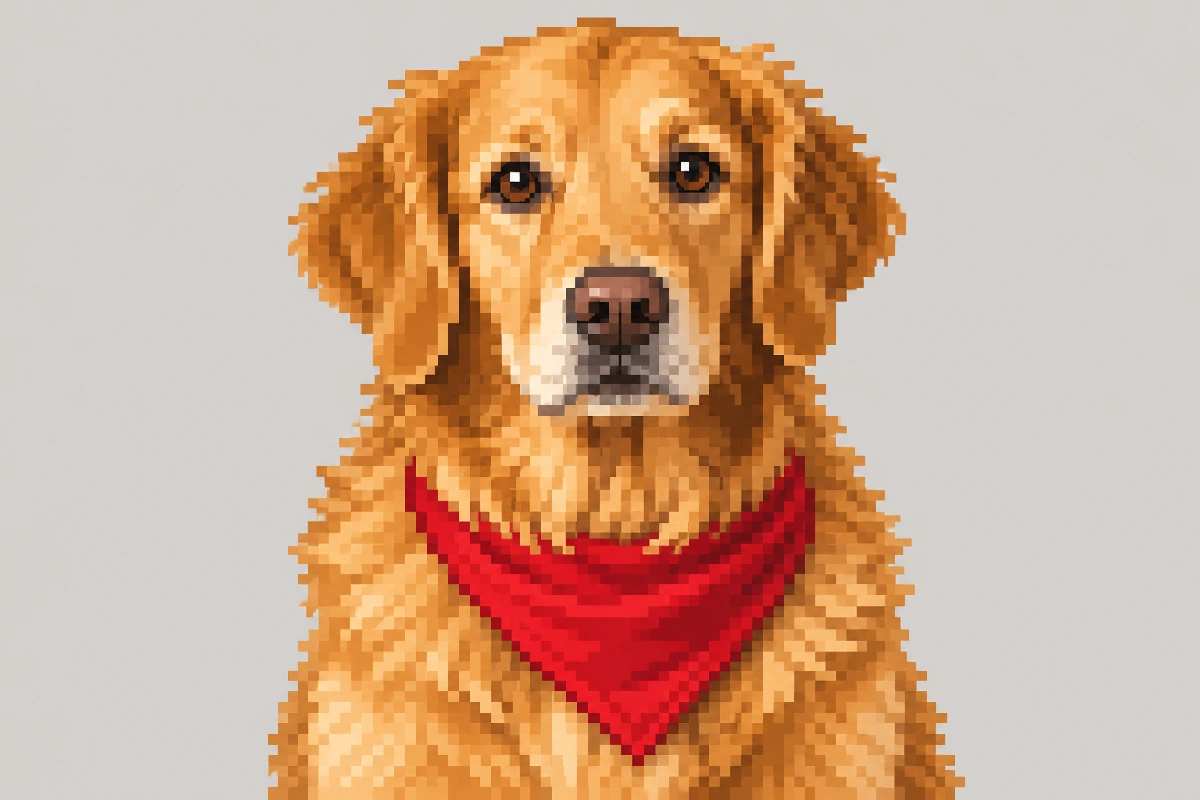
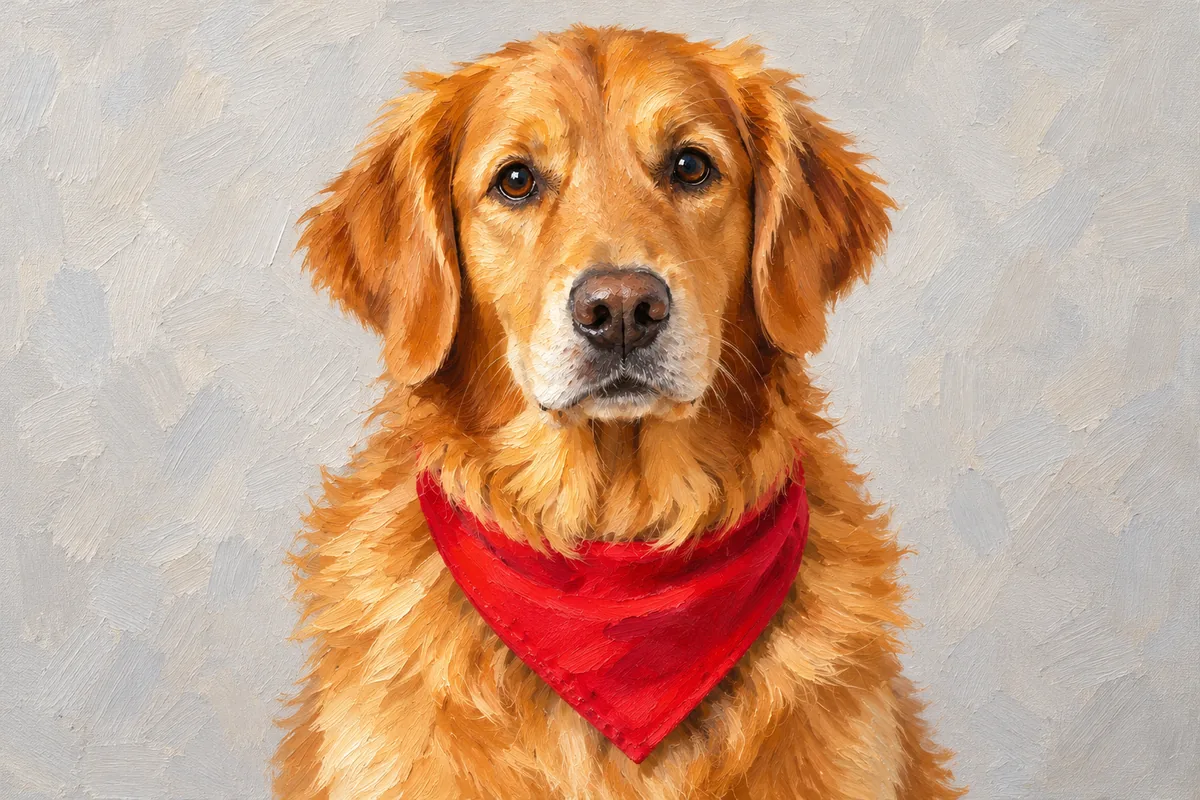
Creating artwork in AIDrawing
Can I create a drawing without uploading a photo?
Yes. Use Text to Image and describe the image you want to create. Include the subject, setting and any important details, then choose a drawing style.
Do I need to write a prompt after uploading a photo?
No. In Image to Image, the photo provides the starting content. Choose a style and leave the extra description empty for a style change, or add a specific change if you want one.
What should I write when I want to change part of a photo?
Name the part and the change, such as change the shirt to blue or replace the background with a garden. You do not need to describe everything that is already visible.
What is the difference between the style selection and my description?
The style selection guides how the image is drawn, including its linework, shading and texture. Your description supplies a new scene in text mode, or changes to the uploaded picture in photo mode.
Will every detail in my photo stay exactly the same?
A drawing redraws the image rather than preserving every photographic detail. Small features, lettering and complex backgrounds may change. Inspect the result if a particular detail is important.
Which mode should I use for a photo-to-sketch drawing?
Use Image to Image: upload your photo and choose the pencil sketch treatment. The extra description can stay empty unless you want to change something.